List Control Action Bar
Description
Enables convenient access to buttons and functions.
Discussion
An Action Bar provides a row of buttons — either above or below a List control — that gives users quick access to common actions like refreshing, exporting, searching, or running custom JavaScript functions. It enhances usability by offering both system-defined and user-defined buttons, and can be tailored for individual Lists or set globally as a default.
List Control - Action Bar
You can specify that a List control should have an Action Bar. An Action Bar is a row of buttons, displayed either above or below the List data. The Action Bar can have system buttons and user-defined buttons. The system buttons can refresh the List data, export the List data to Excel and open the List's Query-by-Example feature to search for data in the List. User-defined buttons can execute arbitrary Javascript code.
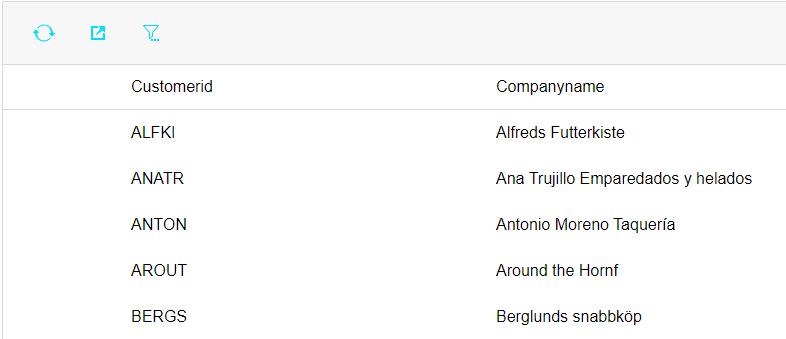
The image below of a List Control Action Bar shows system buttons to refresh data, export data and search the List.
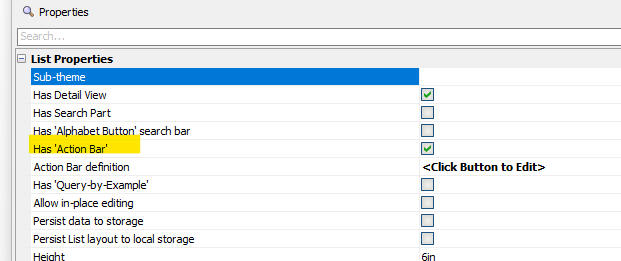
To turn on an Action Bar for a List, edit the List and check the Has 'Action Bar' property on the List Properties tab in the List Builder.
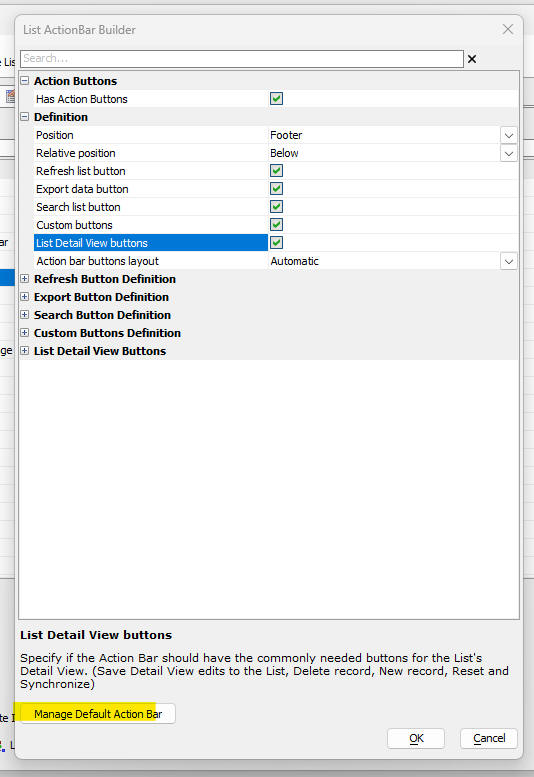
To define the properties of the Action Bar, click the smart field for the Action Bar definition property. This will open the builder shown below. You can specify which system buttons the Action Bar should have and you can customize the appearance of each system button.
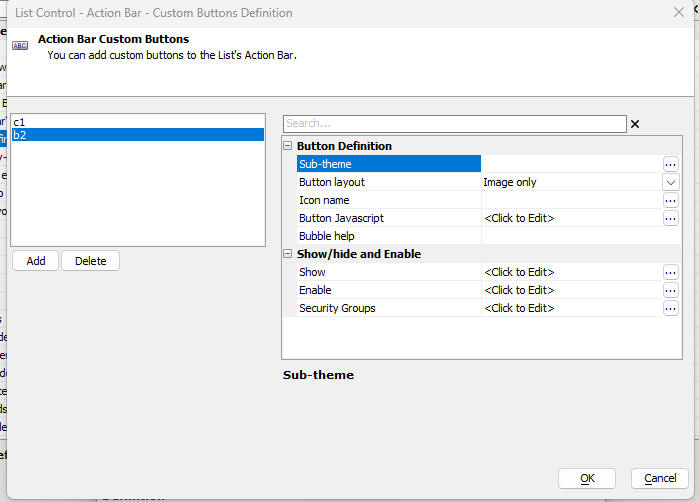
To define custom buttons, check the Custom buttons property, then expand the Custom Buttons Definition category (by clicking on the + icon), then click the smart field for the Definition property. This will open a builder (shown below) where you can define the appearance of each of the custom buttons and their Javascript actions. You can also define which security groups can see the button, and you can define Javascript code that determines if a button is shown or hidden or enabled or disabled. You can define as many custom buttons as you want.
The Default Action Bar
You can specify that every List should have an Action Bar even if an Action Bar has not been explicitly designed for the List. To define a Default Action Bar, click the Manage Default Action Bar button on the List ActionBar Builder dialog.
If you change the default Action Bar, after a List control has been defined, the default Action Bar displayed by the List (if any) will be the default Action Bar that was defined at the time the List was defined. If you want the List to display the new Action Bar, you must edit and then re-save the List.
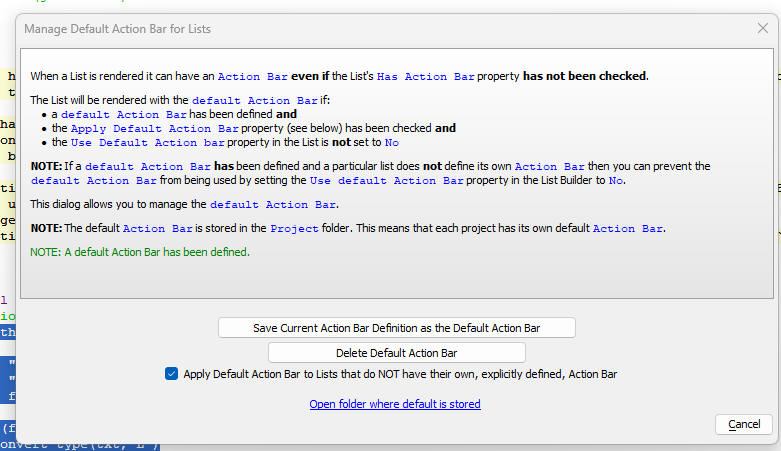
Once you have defined a Default Action Bar, you might want a particular List to not have an Action Bar. To do this, ensure that the List's Has 'Action Bar' property is not checked and the Use default Action Bar property is set to No (or Default if the Apply Default Action Bar property on the Manage Default Action Bar for Lists dialog is not checked).

Action Bar Layout
You can control the order in which the Action Bar buttons appear in the Action Bar. You can also have complete control over the appearance of the Action Bar by defining an HTML template with placeholders for each of the Action Bar buttons.
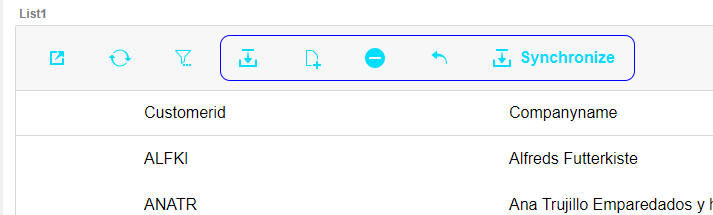
Detail View Buttons - Save and Synchronize
You can specify that the Save and Synchronize actions should be combined into a single action.
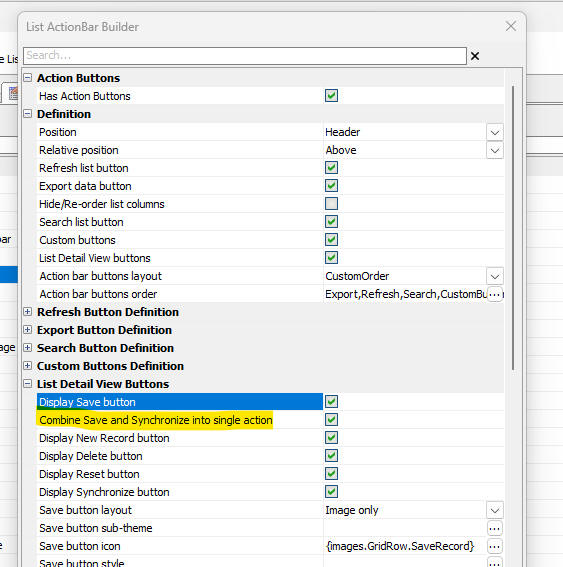
List Control - Defining an ActionBar
In this video we show how an ActionBar can be defined for a List.
List Control - Default ActionBar
In this video we show how a Default ActionBar is defined for a List.
List Control - ActionBar with Detail View Buttons
In this video we show how Detail View buttons (e.g. Save, Delete, New Record, Restore and Synchronize) can be added to an ActionBar. If the List does not have an ActionBar, the DetailView buttons in the ActionBar are automatically hidden.
See Also